 Etappe
46. Travelling across time zones#
When you travel to Lisbon, New York or Tokyo, you plan in the time of the country you visit: check-in is at 3:00 PM local time, the flight home leaves at 10:00 PM in Tokyo. Etappe takes these times exactly as they appear in your booking, remembers the time zone with them and converts only when it displays them — if at all.
Nothing changes for trips that stay in your own time: they show not a single time zone field.
46.1 When a trip gets time zones#
In the trip form, above the countries, the row Time zones offers three values (Creating a trip):
| Value | Effect |
|---|---|
| Automatic (default) | Etappe decides based on the trip’s countries |
| Always | Entries always get a time zone |
| Never | All entries use your home time |
Automatic switches time zones on as soon as the trip reaches a different time than at home on any day of its period:
- a country of the trip has a different time than your home — Portugal or the United Kingdom seen from Germany,
- a country of the trip has several time zones with different times — USA, Canada, Australia, Russia, Brazil,
- a journey starts or ends in a country outside the trip’s countries that has a different time — the stopover in Dubai on the way to Thailand.
Daylight saving time counts: every day of the trip is checked. A trip to Austria and Italy therefore stays without time zones, as does a trip without countries. The footer below the picker says what currently applies — for example “This trip reaches a different time than at home — entries get a time zone.”
If you later switch to Never, saved time zones are not lost. They are only hidden and come back as soon as the trip gets time zones again.
46.2 The time zone of an entry#
In a trip with time zones, every entry with a time carries its own time zone: accommodation (for check-in and check-out), activity, outdoor activity, journal entry and journey — there separately for start and destination (see 46.4 Journeys across time zones).
The Time zone row in the form shows the place and time of the zone, such as “Lisbon · WEST (UTC+1)”. If the clock there differs from home, below it reads “at home 3:30 PM” — the entry’s time in your home time.
Most of the time you don’t need to touch the row. Etappe fills it in this order:
- Chosen by you — Etappe never overwrites a zone you picked yourself.
- From the place search — when you pick a place via the search, Apple Maps supplies its time zone along with it.
- Looked up online — when you set a place on the map, by location or from a photo, Etappe asks Apple Maps for the zone of that coordinate. This only happens with a connection and when Look up time zone online is switched on (All settings).
- From the country — if the country has only one time zone, that’s it. If it has several and Etappe knows the place, it takes the nearest one.
- Zone of the trip day — a new entry without a place starts in the zone you are in on that day (see 46.5 Which time appears where).
Tapping the row opens the picker. At the top are your Home time zone and the Suggestions — the zones of the trip’s countries —, below them Recently used and finally All time zones. The search field finds a place, a country, an abbreviation such as “CEST”, an offset such as “UTC+1” or “-5”, or a military zone letter. Each zone is listed with place, country, abbreviation, offset and letter, for example “Lisbon — Portugal · WEST · UTC+1 · A Alfa”. If the search finds nothing, it reads No time zone found.
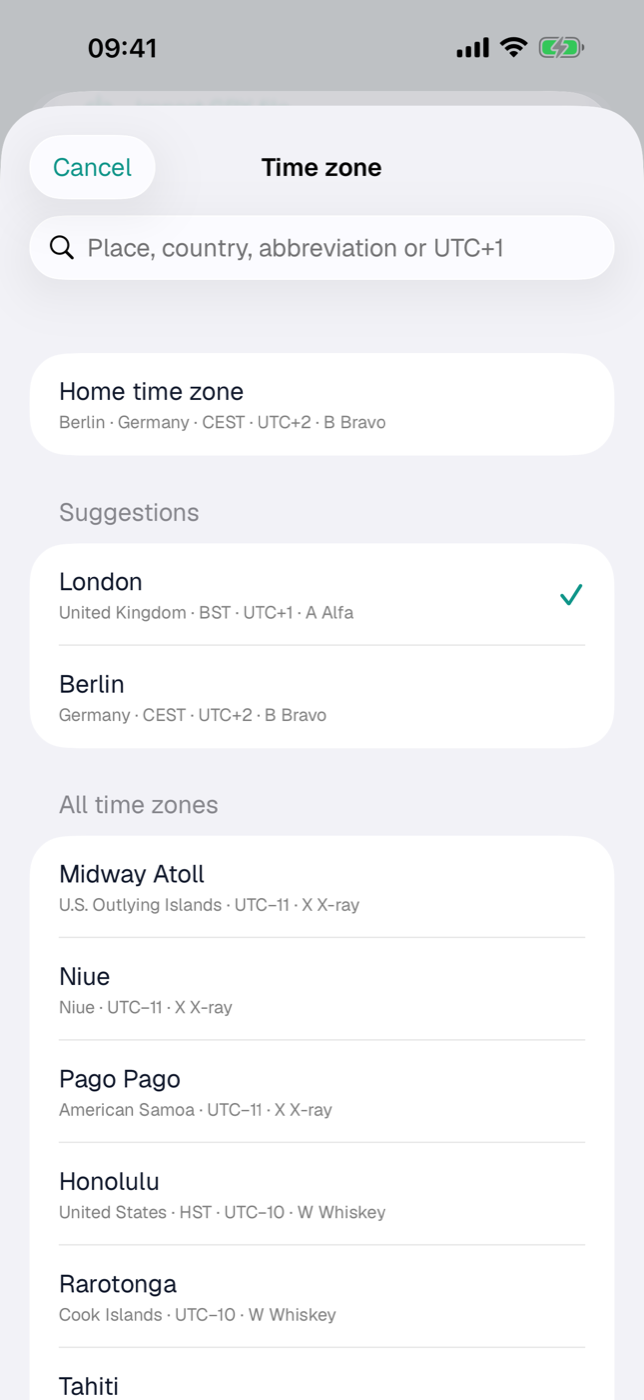
All of this works offline: the zones of every country ship with the app.
46.3 Entering times: always local time#
You enter date and time as they apply on site. 10:00 AM means 10:00 AM in Lisbon, even if your iPhone is still set to Berlin.
If you change an entry’s time zone, the time on the picker stays put — 10:00 AM Berlin becomes 10:00 AM Lisbon, not 9:00 AM. That is deliberate: usually you correct the zone because the time you entered comes from the booking and only the zone was wrong.
Date fields without a time — trip period, birthdays, expiry dates of documents — have no time zone. 14 July stays 14 July on every device and in every zone.
46.4 Journeys across time zones#
A journey has two zones: Departure time zone applies to the departure, Destination time zone to the arrival. You enter both in local time — as they appear on the ticket (Journeys).
Departure Frankfurt 10:00 PM, arrival Tokyo 4:30 PM the next day. Below the times it reads “Duration 11:30 h · time difference +7 h · +1” — eleven and a half hours on the road, the clock jumps seven hours ahead, arrival is on the following day.
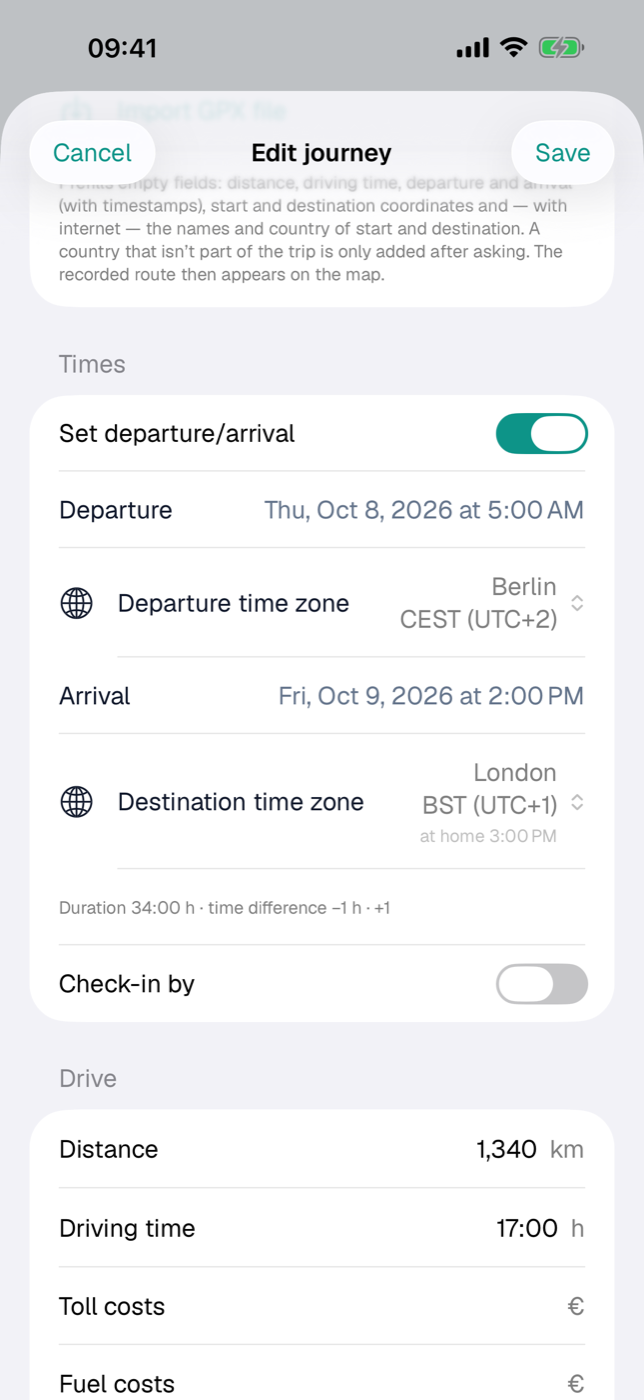
The line calculates with the real point in time, so the duration is right even across the date line. If, after conversion, the arrival is before the departure, the form warns: “Arrival is before departure – check the times or time zones.” Usually a zone has been mixed up.
In the journey list and detail, the time difference appears as a tag +7 h next to the journey. The return leg swaps departure and destination time zones as well (Journeys, section 16.10).
Journeys from older versions. Instead of the destination time zone, they had the switch “Destination in another time zone” with a fixed offset. Etappe keeps showing such journeys correctly. When you open and save one, the form converts it to departure and destination time zones; the old offset is dropped afterwards.
46.5 Which time appears where#
Every trip day has a day zone — the zone you are in on that day. That is the zone of the accommodation where you spend the night; without accommodation, that of the latest change of place (arrival of a journey or check-out); otherwise your home time zone.
Times always appear in their entry’s local time. A time only gets a label such as “WEST (UTC+1)” if its zone differs from the day zone — on the day you arrive in Tokyo, for example, the departure in Frankfurt carries its zone, everything in Tokyo does not. That keeps the lists calm.
| Where | What you see |
|---|---|
| Lists and details | Local time, with a label if it differs; in the detail also “at home 3:30 PM” |
| Calendar | Every entry is on the day it falls on in its local time — the evening flight from Tokyo on the 5th is on the 5th (Calendar and day view) |
| Day view | Above the timeline “Times in Tokyo · JST (UTC+9)”; on a day with a change, the marker “From here UTC+9 (+7 h)” at the arrival |
| Today | “At home it’s 3:12 AM” as long as the local clock differs; on the day of arrival “Time difference +7 h from arrival 4:30 PM — reset the clock in the vehicle” (Today) |
| Overview | for the current trip “Local time 2:30 PM WEST (UTC+1)” if it differs from your home time (Overview) |
| Journal and map | From version 1.4 also by local date: the day overview in the Journal and the day filter of the Map put an entry from 11:30 PM in New York on the New York day, even if your device is already back on home time |
| PDFs | Itinerary and journal as in the app, with the label you chose (Exports and printouts) |
| Calendar file (.ics) | Entries at the right point in time; the description gives the local time, such as “Local time: 4:30 PM JST (UTC+9)” |
46.6 Setting the label: CEST, Lisbon, UTC+1 or 1430B#
How the label looks is set in the settings under Time zones (All settings). The building blocks can be combined freely; the Sample row shows the result right away:
| Building block | Example Lisbon in July | Default |
|---|---|---|
| Abbreviation (CEST) | WEST | on |
| Place name (Lisbon) | Lisbon | off |
| Offset (UTC+1) | UTC+1 | on |
The default gives “2:30 PM WEST (UTC+1)”. If Etappe knows no abbreviation for a zone, the offset remains; there is never an empty label.
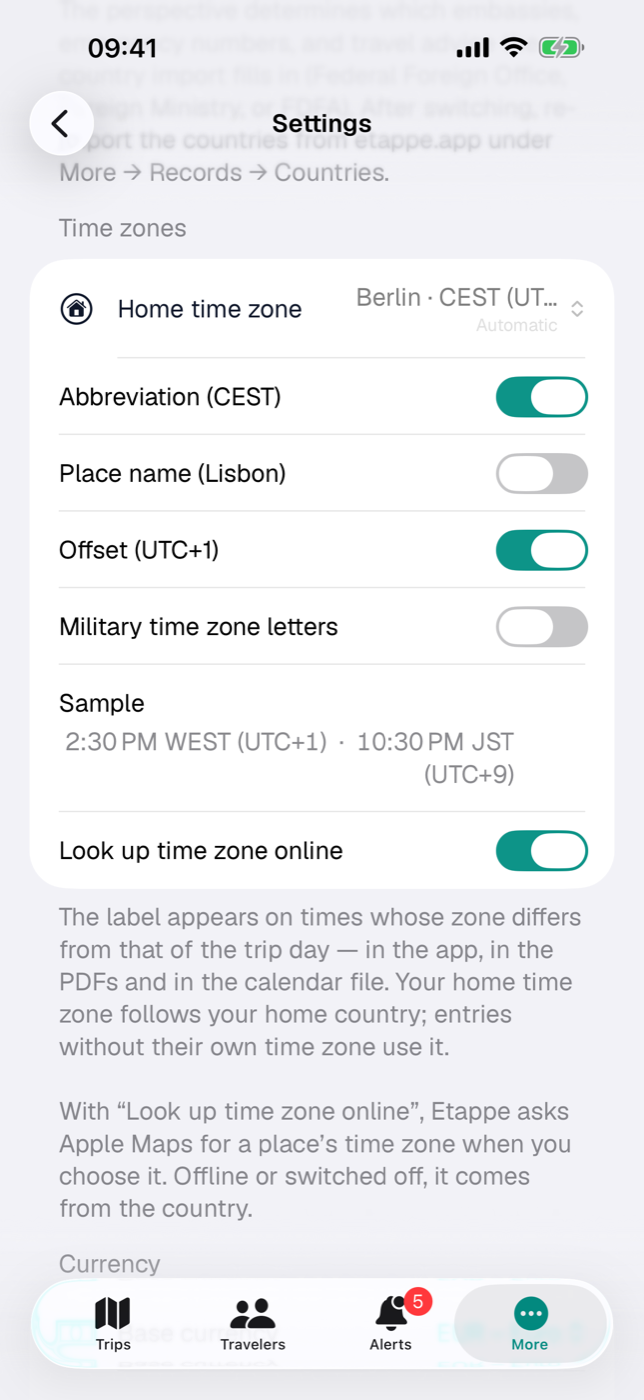
Military time zone letters replace abbreviation and place with the zone’s letter: Z for UTC, A to M (without J) to the east, N to Y to the west — in summer, Lisbon is A, Berlin B and New York Q. Zones with a half hour carry an asterisk (India: E*); beyond ±12 hours the offset appears. Three more switches show up below:
| Switch | Effect | Example |
|---|---|---|
| Military time format (1430A) | four-digit time, letter right after it | 1430A |
| Device’s local time as LT | times in the zone your device is currently in carry “LT” (local time) instead of the letter | 1430LT |
| Date-time group (12oct0656B26) | where date and time appear together, they are shown as a date-time group | 15jul1430A26 |
The date-time group combines day, month, time, zone and year without spaces. All numbers have two digits; the month is always in lowercase English (jan, feb, mar … dec) — in the German and French app too. The zone is always part of the date-time group. Where only a time appears, such as on the timeline, it stays 1430A.
The setting applies in the app, in the PDFs and in the calendar file, and syncs to your other devices via iCloud.
46.7 Photos and journal#
The iPhone and most cameras store the time offset along with the capture time. From photo … in the journal reads both: a photo taken at 2:30 PM in Lisbon becomes an entry at 2:30 PM Lisbon time, even if you only add it at home. The entry gets the matching zone. If the photo lacks the offset, the capture time applies in the zone of the trip day.
Here & now takes the zone your device is currently set to (Journal).
46.8 Home time zone#
The home time zone is the time that trips without time zones use, and the one “at home …” and “At home it’s …” refer to. It follows your home country (Home); if the country has several zones, your device’s. In the settings under Time zones → Home time zone you can set it yourself — for example if your home is not in the main zone of your home country. Automatic appears in front of it as long as it follows your home country.
46.9 Older devices and mixed data#
Time zones have been part of Etappe since version 1.3. A device with an older version doesn’t know them and shows all times in its own time zone — right as a point in time, but not in local time. So update all devices that share the same trips via iCloud (iCloud sync).
Existing entries keep their time when first opened: what was entered as 10:00 AM stays 10:00 AM — now in the zone the form suggests. The backup includes the time zones (Backup).